
Cue
Tap. Connect. Listen.
I made Cue because I wanted to listen to music properly again. With intention, focus, and no distractions. Throughout the years, my iPhone became a constant source of pings and interruptions. I’ve only just now realised how often my listening was being broken–so I thought I’d try and fix that.
What exactly is Cue?
It’s nothing new. Just a collection of existing tools that I’ve pulled together into a simple formula: iPhone Shortcuts and Automations, your Cue aka an NFC tag, the app you already listen to music on and Focus Mode.
Once we’ve setup your Cue, the flow will be:
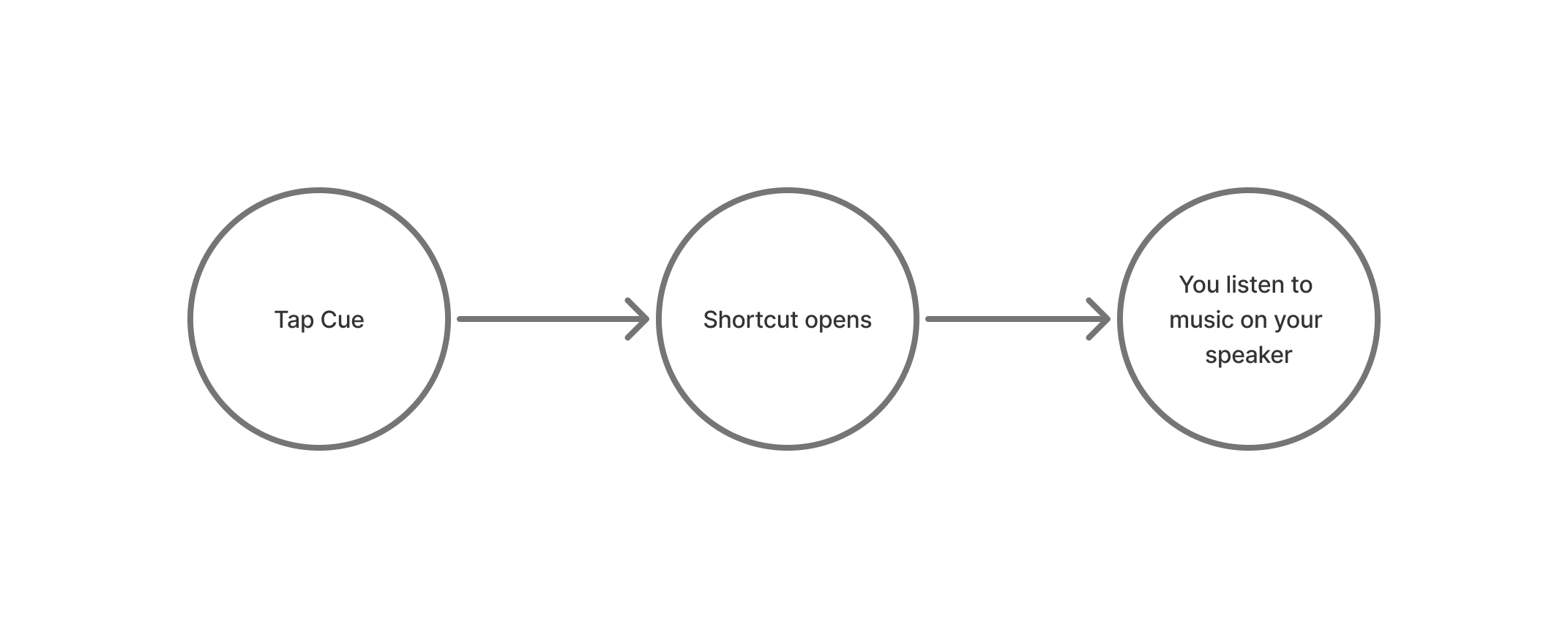
Let’s activate your Cue. It’ll take about 5 minutes.
First step: Setting up your Shortcut.
If you’re reading this on your iPhone, consider this step done. If not, please do from now on.
Turn your iPhone’s Bluetooth on and connect to your wired Bluetooth speaker.
Depending on what music app you use, install your Shortcut linked below onto your iPhone.
Apple Music
SoundCloud
Go into your Shortcut that we’ve just installed and adjust the following setting:
Set Playback Destination to [your wired Bluetooth speaker]
Second step: Setting up your Automation.
Go to “Shortcuts” and then “Automation” (located at the bottom of the screen) and select the + on the top right corner of your screen.
Search “NFC” and press select.
Select “Scan” and tap the top of your iPhone to the top of your Cue/NFC. As though, you are paying for something with your Apple Wallet.
“Name This Tag” will appear. Let’s rename it to “Cue On”.
Select “Run Immediately” and press “Next”.
You should now be on a page called “When Cue On is detected”. Within this page, select “My Shortcuts” and select “cue on - spotify.”
All done. You won’t ever have to do this again to use Cue.
A few notes and testing instructions.
To turn Cue on, your phone needs to be unlocked.
Currently, we can only connect your Cue to one wired Bluetooth speaker. Your speaker should always be on for Cue to work.
I’ve only made a link for Spotify, let me know if you listen to your music with another app.
Do Not Disturb (DnD) mode will be turned on once you tap your Cue/NFC. At the minute, I haven’t set up a way to turn this entire thing off. So when you’re done listening, turn DnD off & disconnect from your Bluetooth speaker.
This is the MVP of MVP’s so this is veeeery basic and relies on you, the user, to set up most of this. Sorry about that. But with your feedback, this will help me figure out if I should actually do something about this (like make a dedicated website or an app).
Share your feedback with me:
What’s clunky? Where did you get stuck in the setup?
Are you using Cue? If so, how and when?
What do you wish Cue had?